
WCopyfind settings explained
What each setting does, and how to choose values for your documents.
Quick recommendations
| Setting | To find exact copying | To find edited copying too |
|---|---|---|
| Match phrases of at least | 6 words | 6 words |
| Report pairs that share at least | 100 words (full papers); 20–40 (short answers) | same |
| Allow up to … imperfect words in a row | 0 | 2 |
| % of words that must match (More Options) | 100 | 80 |
| Ignore letter case | off | on |
| Ignore punctuation (or outer punctuation only) | off | outer punctuation on |
| Ignore numbers | off | on |
| Skip words longer than … characters | on, 20 | on, 20 |
Exact matching is fastest and gives the most clear-cut results. Allowing imperfections finds copying that someone tried to disguise, at some cost in speed.
Main window
Match phrases of at least ___ words
The shortest run of matching words that WCopyfind counts as a match (1 to 999; default 6). With 6, a phrase must share at least six words in a row to count. Shorter phrases turn up by coincidence in almost any two documents on the same topic; much longer ones miss copying that was broken up by edits. Six is a good choice for most writing.
To keep comparisons fast, WCopyfind begins its matches at words of four letters or more, so very short phrases made only of small words ("it is in the") are not found when the phrase length is above one.
Report pairs that share at least ___ matching words
A pair of documents is listed only if their exactly matching phrases add up to at least this many words (1 to 99,999; default 100). This keeps pairs with a stray shared phrase or two out of the results. There's no single right value: it depends on how long your documents are and how much shared text you consider worth a look. For full-length papers, 100 works well; for paragraph-length answers, try 20 to 40.
Allow up to ___ imperfect words in a row
How many non-matching words WCopyfind will bridge to keep a match going (0 to 9; default 0). With 2, two copied passages separated by one or two changed, inserted, or deleted words are joined into one match, and the differing words are shown in italics in the report. With 0, only exact matches are found. Higher values find more disguised copying but make comparisons slower.
This setting works together with the matching percentage below: set that to about 80 when you allow imperfections.
Ignore letter case
Treats "Whenever" and "whenever" as the same word. Matching usually increases a little. The report still shows the original capitalization.
Ignore punctuation
Ignores all punctuation characters when comparing, so "don't" matches "dont" and "well-known" matches "wellknown". The report still shows the punctuation. Use it when you want to find matches despite changes in punctuation; leave it off for strict matching.
Ignore numbers
Ignores digits when comparing, so "8-fold" matches "10-fold" and "1935" matches "1936". Useful when copiers change dates or figures.
More Options
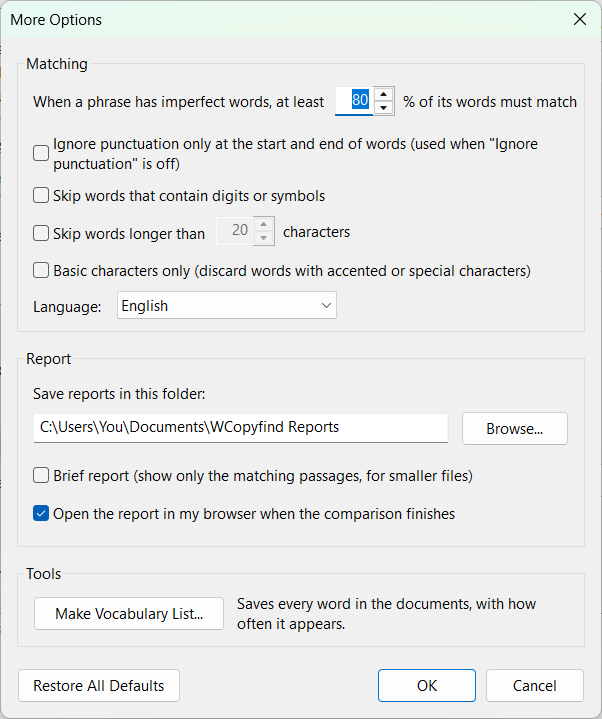
% of words that must match
When a phrase includes imperfect words, at least this percentage of its words must match exactly (0 to 100; default 100). As WCopyfind extends a match across changed words, it stops if the proportion of exact matches drops below this value. Long, nearly identical passages are easily joined; short phrases with several changes are not, which keeps unrelated text from being stitched together. At 100, no imperfections are ever allowed, whatever the setting in the main window. Use 80 when allowing imperfections.
Ignore punctuation only at the start and end of words
A gentler version of Ignore punctuation: it removes punctuation around a word but not inside it. The sentence "The box, which I found, is broken." is compared as The box which I found is broken, while "don't" stays "don't". A good choice for finding matches despite minor editing. (It has no effect when Ignore punctuation is on.)
Skip words that contain digits or symbols
Leaves out "words" containing anything other than letters, internal hyphens, and apostrophes, such as file names, web addresses, and formatting leftovers. They aren't used for matching, but they still appear in the report. If you turn this on, also turn on outer punctuation, so words next to quotation marks or commas aren't skipped.
Skip words longer than ___ characters
Leaves out words longer than this (default 20), which are almost always non-text such as web addresses, image data, and file names. Recommended unless your documents really contain very long words.
Basic characters only
Discards words that contain accented or special characters. It was designed for old Word .doc files, whose internal clutter could look like text; with WCopyfind 6's improved reading of .doc files it's rarely needed. Leave it off for documents in languages other than English.
Language
Tells WCopyfind which characters count as letters and punctuation, and how capital letters work, in your documents' language. Choose the closest language on the list; English works reasonably well for most languages that use the Latin alphabet.
Save reports in this folder
Where the reports are written. The default is Documents\WCopyfind Reports, and WCopyfind creates the folder if needed. Each comparison replaces the report already in the folder.
Brief report
Makes the side-by-side pages show only the matching passages, one to a paragraph, instead of the full text of both documents. Brief reports are much smaller, which helps when a comparison finds thousands of pairs of long documents.
Open the report in my browser when the comparison finishes
On by default. Turn it off if you'd rather open the report yourself with Open Report.
Make Vocabulary List
Writes a list of every word in all the documents in both lists, with how many times each appears, most frequent first. The ignore and skip settings apply, so turn on Ignore letter case, outer punctuation, and the skip options for a clean list. The file is plain text with one word per line, tab-separated from its count, ready to open in a spreadsheet. See interesting uses for ideas.
Restore All Defaults
Returns every setting, including those in the main window, to its original value.