WCopyfind user guide
Everything you need to check a collection of documents for shared text, from your first comparison to a full class set.
Private by design. Everything in this guide happens on your own computer. WCopyfind never uploads your documents or sends them anywhere, so it's safe to use with student work and confidential material.
Try it in five minutes
The quickest way to understand WCopyfind is to watch it find planted copying.
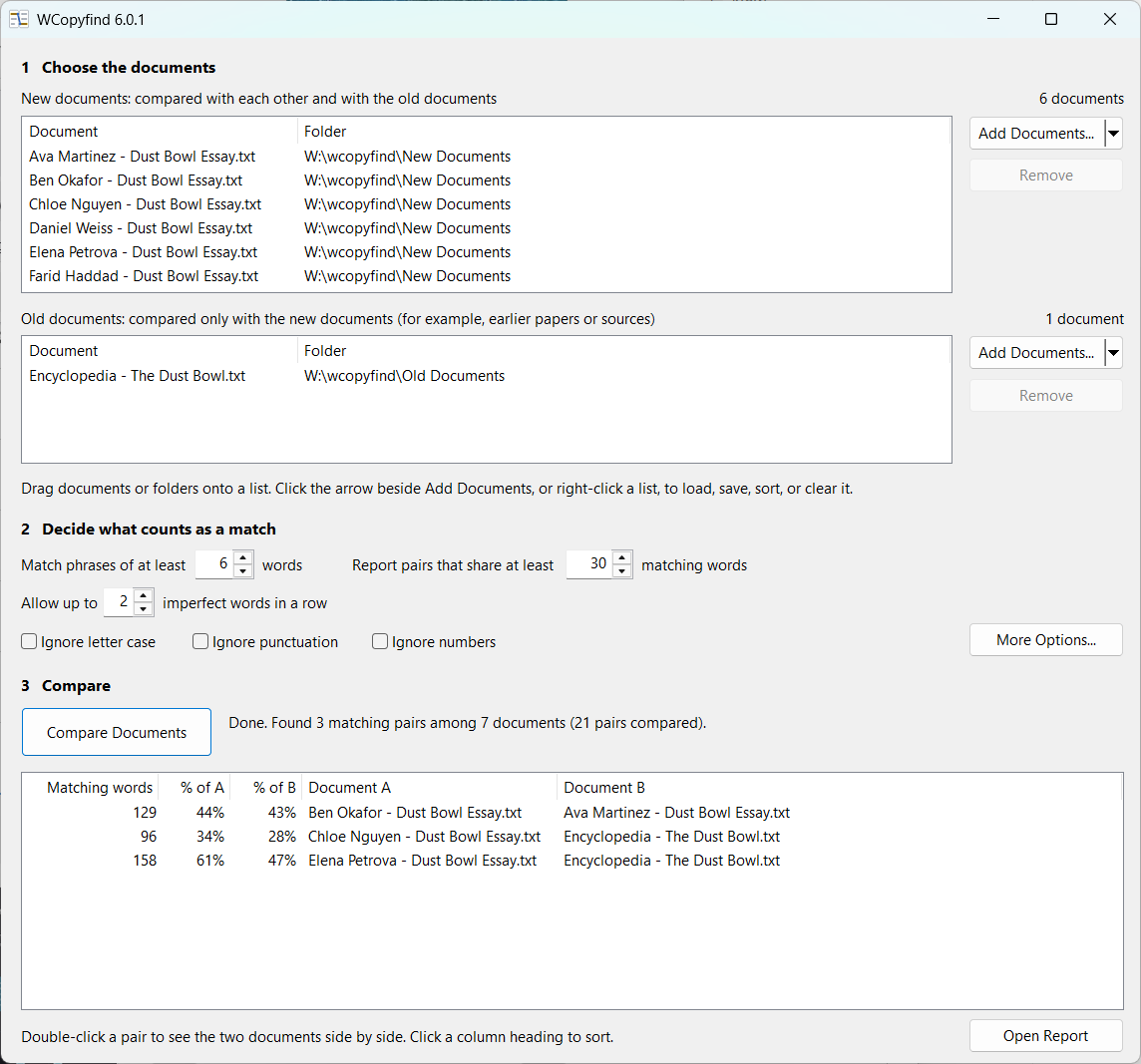
- Get the program and the samples. Download WCopyfind and WCopyfind-Samples.zip, and unzip both. The samples contain a New Documents folder with six student essays about the Dust Bowl, and an Old Documents folder with an encyclopedia article.
- Start WCopyfind by double-clicking
WCopyfind.exe. - Add the documents. Drag the New Documents folder onto the top list, and the Old Documents folder onto the bottom list.
- Adjust two settings for these short essays. Set Report pairs that share at least to 30 matching words, and Allow up to 2 imperfect words in a row. Then click More Options and set the percentage of words that must match to 80.
- Click Compare Documents. In a moment WCopyfind reports three matching pairs:
- Ben copied two paragraphs from Ava, changing a few words.
- Chloe copied two passages from the encyclopedia word for word.
- Elena copied most of the encyclopedia with light edits.
- Double-click a pair to see the two documents side by side. Click any highlighted passage to jump to its twin in the other document.
Step 1: Choose the documents
WCopyfind has two lists, and the difference matters:
| List | Compared with | Put here |
|---|---|---|
| New documents | each other and the old documents | The documents you're checking, such as this semester's papers |
| Old documents | the new documents only, never each other | Sources, previous years' papers, published articles, and saved web pages that the new documents might have copied from |
Keeping reference material in the old list saves time and clutter: you don't need to know that two old papers share text, only whether a new paper shares text with any of them.
Adding documents
- Drag and drop files or folders from File Explorer onto either list. A folder adds all the documents inside it, including those in its subfolders.
- Click Add Documents to choose files, or double-click an empty part of a list.
- Click the arrow beside Add Documents (or right-click a list) for more: Add a Folder, Load List from File, Save List to File, Sort by Name, Keep Sorted by Name, Move Selected to the other list, Remove Selected, and Clear All.
WCopyfind reads Word documents (.docx and .doc), plain text (.txt), web pages (.htm, .html), PDFs that contain text (see reading PDF files), and internet shortcuts (.url) to web pages. The lists are remembered, so they're still there the next time you start WCopyfind.
Tip: Save a list of your reference sources with Save List to File, and load it into the old list whenever you check a new batch of papers.
Step 2: Decide what counts as a match
Three numbers control what WCopyfind reports:
- Match phrases of at least ___ words. The shortest run of matching words that counts. Shorter phrases, like "at the same time", appear in almost any two documents by chance; six words is a good default.
- Report pairs that share at least ___ matching words. A pair of documents is listed only if their matching phrases add up to this many words. Use about 100 for full-length papers; lower it for short documents.
- Allow up to ___ imperfect words in a row. With 0, only exact matches count. With 2, WCopyfind keeps a match going across one or two changed, added, or dropped words, which catches copying disguised by light editing. (Also lower the matching percentage in More Options to about 80.)
The checkboxes make matching more forgiving: Ignore letter case, Ignore punctuation, and Ignore numbers. The rarer settings, and the report folder, are under More Options. Every setting is explained, with recommended values, on the settings page.
Step 3: Compare and review
Click Compare Documents. WCopyfind reads each document, then compares every pair that should be compared. The button changes to Stop, a progress bar shows how far it has gone, and matching pairs appear in the list as they're found. If you stop early, you keep the pairs found so far.
Each row in the results shows:
- Matching words: how many words are in phrases the two documents share exactly
- % of A and % of B: what fraction of each document those words make up
- Document A and Document B: the two documents (with their folder, if two documents have the same name)
Click a column heading to sort, for example by % of A to put the most heavily copied documents at the top. Double-click a pair, or select it and press Enter, to open it side by side. Open Report opens the full report in your browser; WCopyfind also opens it automatically when a comparison finishes. How to read the reports →
If a document can't be read (it may be damaged, protected, or open in another program), WCopyfind leaves it out, carries on with the rest, and lists it in the report.
A workflow for checking student papers
- Collect the papers as files, ideally Word documents, named so you can tell who wrote each one (for example, "Lastname Firstname.docx"). Put them all in one folder.
- Gather reference material into a second folder: papers from previous years, the sources students were likely to use, and any web pages you suspect (save them as web pages, or make internet shortcuts to them).
- Remove text every paper shares legitimately. If students pasted the assignment prompt or a required template into their papers, every pair will match on it. Delete it from the papers, or raise Report pairs that share at least above its length.
- Start with the defaults (6 words, 100 words, no imperfections), then look again with imperfections allowed (2, with 80% matching) to catch lightly edited copying.
- Sort by percentage and read the top pairs side by side.
- Judge each match yourself. Shared text isn't always plagiarism: properly quoted and cited passages, common phrases, and shared sources all create matches. WCopyfind shows you where to look; deciding what it means is up to you. See about plagiarism.
Keyboard shortcuts
| Where | Key | Does |
|---|---|---|
| Document lists | Delete | Remove the selected documents |
| Document lists | Ctrl+A | Select all |
| Results list | Enter | Open the selected pair side by side |
| Results list | Delete | Remove the selected pairs from the list |
| Settings boxes | Enter | Compare Documents |
| Side-by-side report | N / P | Next / previous matching passage |
Where WCopyfind keeps things
- Reports go in the report folder,
Documents\WCopyfind Reportsunless you choose another in More Options. Each comparison replaces the previous report in that folder, so copy a report elsewhere if you want to keep it. - Settings and document lists are saved in your Windows user profile (in the registry, under
HKEY_CURRENT_USER\Software\WCopyfind). - Your documents stay exactly where they are. WCopyfind only reads them; it never changes, moves, or uploads them.
To uninstall WCopyfind, delete WCopyfind.exe. You can also delete the report folder.